How about upgrading your Salesforce setup? You're in the right place. If you're still using Salesforce Classic, it's time to look at the Salesforce Lightning migration. The switch may feel big, but it’s worth every effort. In this blog, you’ll learn how to plan, prepare, and launch your Lightning Experience with confidence. Let’s simplify the transition for you.
Introduction to Salesforce Lightning Migration
Salesforce Lightning is more than just a new interface. It's a more innovative way to use Salesforce. It includes powerful features that make workflows faster, dashboards clearer, and automation easier. Salesforce Lightning migration refers to the process of transitioning your CRM from Classic to Lightning. Why is this important now? Salesforce is focusing all new updates on Lightning. Classic is slowly becoming outdated.
By migrating, you open the door to advanced tools and future-proof performance. If you're just starting, don’t worry. You don’t need to be a tech expert to understand this guide. We’ll break it down into simple, action-oriented steps you can follow.
Why should you migrate from Classic to Lightning?
Here are five clear reasons:
- Salesforce Classic is no longer evolving.
All innovation is now happening in Lightning.
- Lightning offers better UX.
Everything from navigation to reporting is smoother and brighter.
- Mobile-ready design.
Lightning works great on tablets and phones. Classic doesn’t.
- AI and analytics.
Tools like Einstein are built for Lightning only.
- Improved performance.
Faster loading times and simplified workflows save hours each week.
Thousands of businesses have already migrated, and they’re seeing tangible benefits. Delaying your Salesforce UI upgrade could put your team at a disadvantage. By switching early, you give your business a competitive edge.
Overview of Lightning Experience Setup
Setting up the Lightning Experience doesn't mean rebuilding your entire CRM. Salesforce offers tools to simplify and mitigate the risks associated with the migration process. Start by opening the Lightning Experience Transition Assistant inside your Salesforce org.
This tool walks you through the three main phases:
- Discover Phase: Understand Your Current Setup and Evaluate Readiness.
- Rollout phase: Prepare teams, train users, and configure features as needed.
- Optimization phase: Monitor adoption, address issues, and continually improve.
You’ll gain access to the Lightning Readiness Report, which helps identify areas that need improvement. The Lightning Experience setup is user-friendly, but you still need a plan in place. Take this opportunity to update and refine outdated data, eliminate unnecessary fields, and optimize workflows. The better your preparation, the smoother the migration process will be.
Salesforce UI Upgrade: What’s New?
The Salesforce UI upgrade is a complete redesign, not just a visual refresh.
Here’s what’s new in Lightning:
- The App Launcher allows users to switch between apps instantly.
- Lightning Record Pages provide a flexible layout for displaying related data.
- Path and Guidance help sales teams follow structured steps.
- Dynamic Dashboards display live performance statistics without requiring manual updates.
- Lightning Flow simplifies automation with drag-and-drop tools.
Classic layouts were static and cluttered. Lightning is interactive, clean, and responsive. Users can now personalize their dashboards, pin their favorite apps, and quickly switch between tasks.
This upgrade improves both usability and engagement. Your team will spend less time searching and more time selling, supporting, or building.
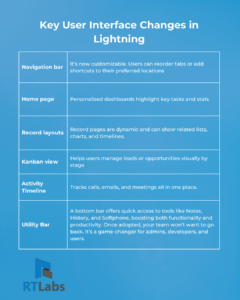
Key User Interface Changes in Lightning
Let’s explore the central Salesforce user interface changes you’ll notice right away:
Steps to Plan and Execute Your Salesforce Lightning Migration
Here’s how to carry out a successful Salesforce Lightning migration:
Step 1:Assess Readiness
Run the Lightning Readiness Report. This checks whether your current org is compatible.
Step 2: Identify Gaps
Check for hard-coded Visualforce pages, JavaScript buttons, or outdated integrations.
Step 3: Clean Up
Remove unused custom fields, workflows, and outdated records.
Step 4: Create a Rollout Plan
Decide whether to implement a complete migration or a phased rollout. Assign roles and responsibilities.
Step 5: Configure Lightning
Use Lightning App Builder to create new record pages, components, and layouts.
Step 6: Train Users
Offer role-based training sessions and onboarding material.
Step 7: Test in Sandbox
Do a full round of testing in a sandbox environment before going live.
Step 8: Go Live & Monitor
Migrate users and monitor activity with the Lightning Usage App.
Step 9: Gather Feedback
Ask users for feedback to identify and resolve issues early, thereby increasing adoption. This structured approach ensures nothing slips through the cracks. A messy migration causes frustration, planning makes all the difference.
Performance Improvements with Lightning Experience
Salesforce performance improvements are one of the biggest reasons to migrate. Lightning is built on modern web technology. This results in:
- Faster page loads
- Smoother record navigation
- Optimized API usage
You’ll also find improvements in data caching and component-based rendering. Lightning provides you with more innovative automation powered by Einstein AI. This boosts efficiency by recommending next steps or prioritizing leads.
Mobile users benefit too. The Salesforce mobile app is optimized for Lightning, offering a consistent experience across devices. For teams working on the move or under pressure, this is a huge win.
Lightning also supports advanced tools like:
- Einstein Activity Capture
- Dynamic Forms
- Flow Orchestration
These help automate manual tasks and eliminate human error. When performance improves, user adoption and ROI improve too.
Tips for a Smooth Transition to Lightning
Here are practical tips to make your Salesforce Lightning migration smooth:
- Start with a pilot team
Select power users or a small department to try Lightning first.
- Leverage built-in tools
Utilize the Lightning App Builder, Transition Assistant, and Usage App to their fullest potential.
- Customize gradually
Don't try to replicate Classic exactly. Embrace Lightning’s strengths instead.
- Provide guided training
Use Trailhead, internal tutorials, and live Q&A sessions to help users.
- Monitor adoption regularly
Track login trends, page loads, and user feedback on a weekly basis.
- Keep communication open
Let users know what to expect before and after the switch.
- Celebrate small wins
Highlight success stories and improvements after launch to boost morale. Remember, migration is not a one-day job, it’s a change management journey. The more prepared your team is, the more confident they’ll be.
Conclusion: Embrace the Future with Salesforce Lightning
The future of CRM is here, and it’s called Salesforce Lightning. Migrating from Classic is more than a UI upgrade. It's about giving your team better tools to succeed.
From drag-and-drop dashboards to AI-powered insights, Lightning helps your business move faster and smarter.
A well-planned Salesforce Lightning migration yields long-term benefits, including enhanced performance, increased productivity, and a more satisfied user base. Don’t wait until Classic becomes obsolete. Get started now.
And if you need expert help, RT Labs is here to guide you from planning to launch. Let’s make your migration seamless and successful.
Frequently Asked Questions (FAQ)
What is Salesforce Lightning migration?
It’s the process of upgrading your CRM from Classic to the Lightning Experience interface.
Can I switch back to Classic after migration?
Yes, during the rollout phase. However, Classic support will eventually be phased out.
How long does a typical migration take?
For a small organisation: 2–4 weeks. For complex ones: up to 3 months.
Will all my custom code work in Lightning?
Not always. You may need to refactor Visualforce pages and replace JavaScript buttons.
Do I need to train all users?
Yes. Even if it’s a small change, proper training improves adoption and satisfaction.
Is Lightning available on mobile?
Yes. The Salesforce mobile app is fully optimized for Lightning.
How do I test before going live?
Use a full-copy sandbox: test workflows, page layouts, integrations, and security.